Digibricks Teacher Portal Operations Guide
Comprehensive educator manual for generating AI quizzes, distributing practice assignments, hosting formal examinations, automated grading, and managing Digibricks credits.
Overview & System Sign-In Guide
Digibricks Teacher Portal is an intelligent quiz creation and online assessment platform engineered specifically for educators, teachers, and educational content creators.
🌐 Pre-Login Experience:
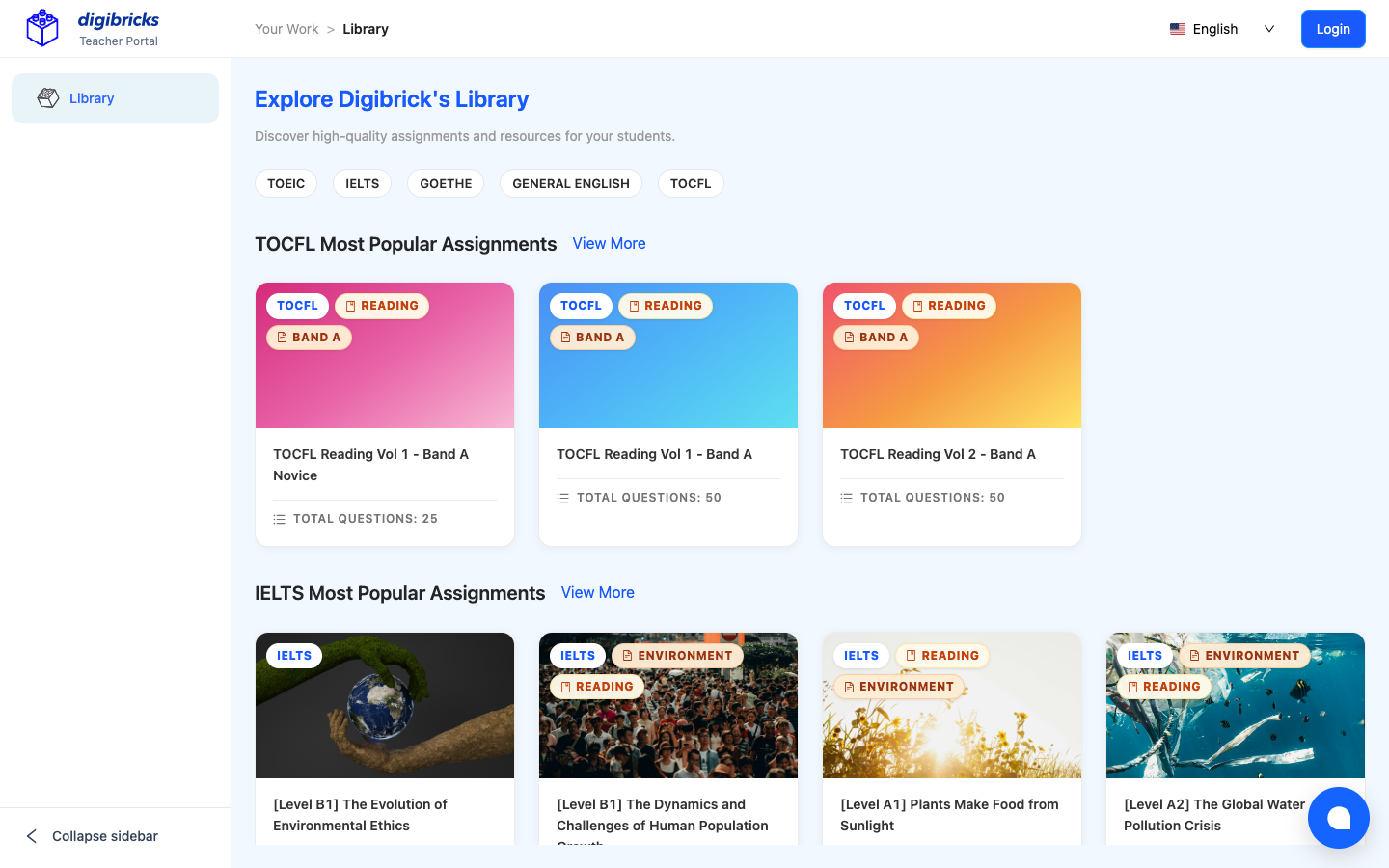
- When visiting
https://make.digibricks.net/, you can explore sample learning resources in Digibrick’s Library. - Click the “Login” button located at the top right of the Header.
🔐 Sign-In Workflow (Identity Auth Gate):
- Click the “Login” button in the upper right corner.
- The browser redirects to the secure authentication gate
identity.digibricks.net. - Enter your assigned Teacher credentials:
- Email:
example@gmail.com - Password:
examplePassword
- Click “Sign In” (or choose “Sign in by Gmail” if linking a Google Workspace account).
- Upon successful authentication, you are redirected into your central Workspace (
/bricks?menu=space&level=1).
Folder Management & Organization on Workspace
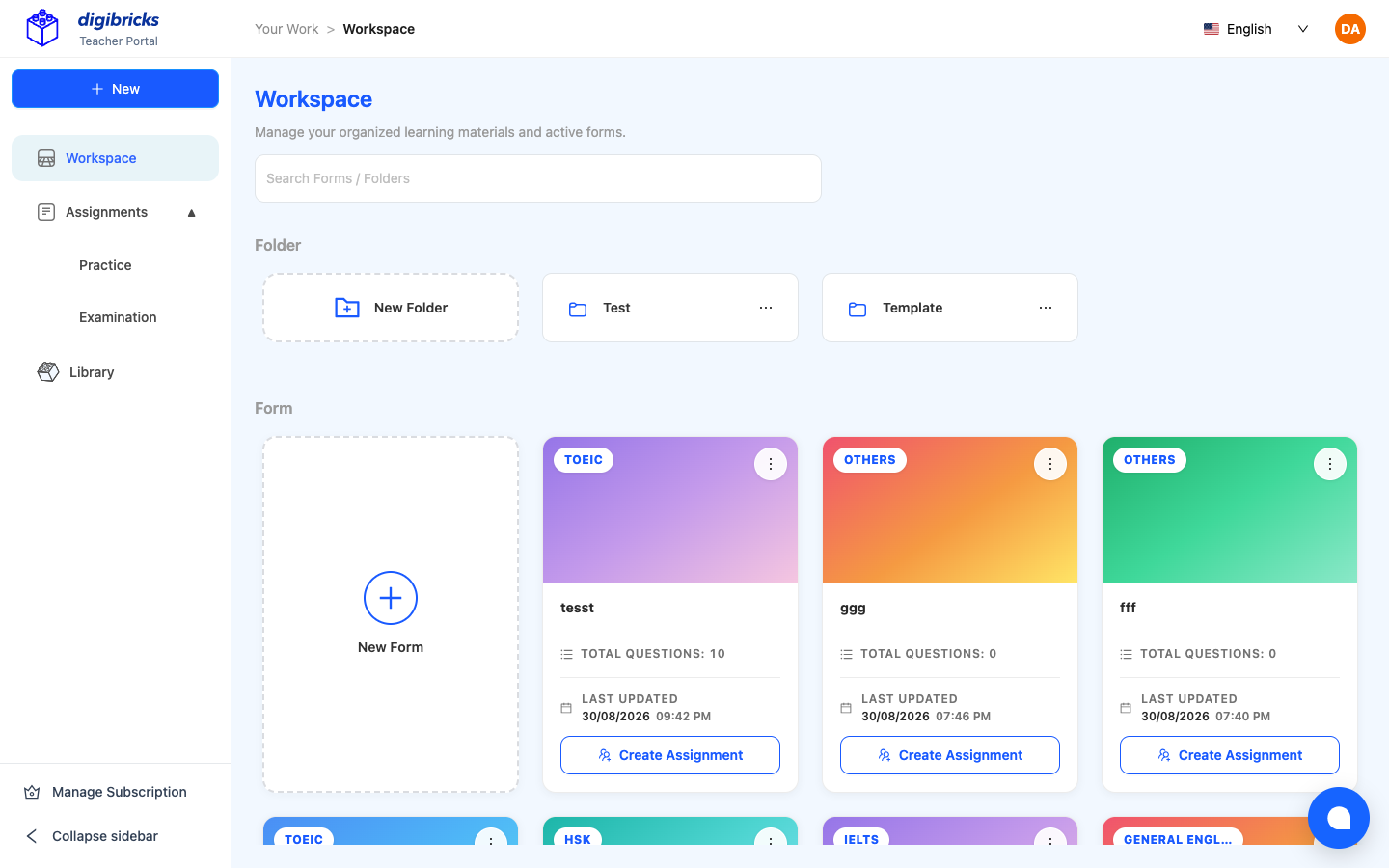
The Workspace (/bricks?menu=space&level=1) serves as your central repository to categorize, structure, and retrieve all teaching quizzes and assignments.
📁 1. Folder Management (Folders):
- Create New Folder: Click ”+ New Folder” to group materials by Class, Cohort, Grade, or Exam Prep program (e.g. Test, Template, Grade 9A, Intensive TOEIC, IELTS Reading).
- Instant Search: The “Search Forms / Folders” search bar allows teachers to filter folders and quizzes in 1 second.
🗂️ 2. Smart Form Cards:
Each quiz is presented as an interactive card displaying:
- Subject / Category Tag:
TOEIC,IELTS,HSK,VSTEP,GOETHE,GENERAL ENGLISH,GRAMMAR,OTHERS. - Form Title: Test or lesson title (e.g. IELTS Academic Reading Test AI Demo, Simple Present Quiz).
- Total Questions: Number of questions within the form (10, 20, 30 questions…).
- Last Updated: Timestamp of the most recent modification.
- “Create Assignment” Button: Quickly schedule and assign this test directly to students.
2 Form Creation Methods (AI Generation vs Manual Builder)
Digibricks delivers 2 flexible test creation workflows to match every teacher’s lesson planning needs:
🌟 2 Core Creation Workflows:
1. 🤖 AI Form Generation (From PDF / Word / PowerPoint):
If you already have existing test banks stored in Word (.docx), PDF, or PowerPoint, Digibricks transforms them into online quizzes in seconds:
- Step 1: Upload Files to AI Assistant:
- Click the ”+” button inside the AI Assistant drawer and select Upload file.
- If your test has separate questions and answer-key files, upload both files sequentially.
- Step 2: Select the Optimal AI Model:
- ⚡ Gemini 2.5 Pro: Ultra-fast speed, best for text-only prompts and quick drills.
- 🧠 GPT-5.6 Terra (Recommended): Deep multimodal parsing for complex PDF, Word (.docx), PowerPoint, and image attachments.
- Step 3: Write Battle-Tested Prompts:
- Prompt Example:
“Please generate a test from the attached file. Maintain exact question order, wording, and total count of 20 questions. Extract the correct answer key from the underlined option letters in each question.”
- Tip: High-precision prompts citing formatting rules and examples produce 100% accurate results.
- Prompt Example:
- Step 4: Review & Accept:
- Click “Accept All” to import questions directly into your form, or “Reject All” to refine your prompt.
2. ✍️ Manual Form Builder:
- Step-by-Step Guide:
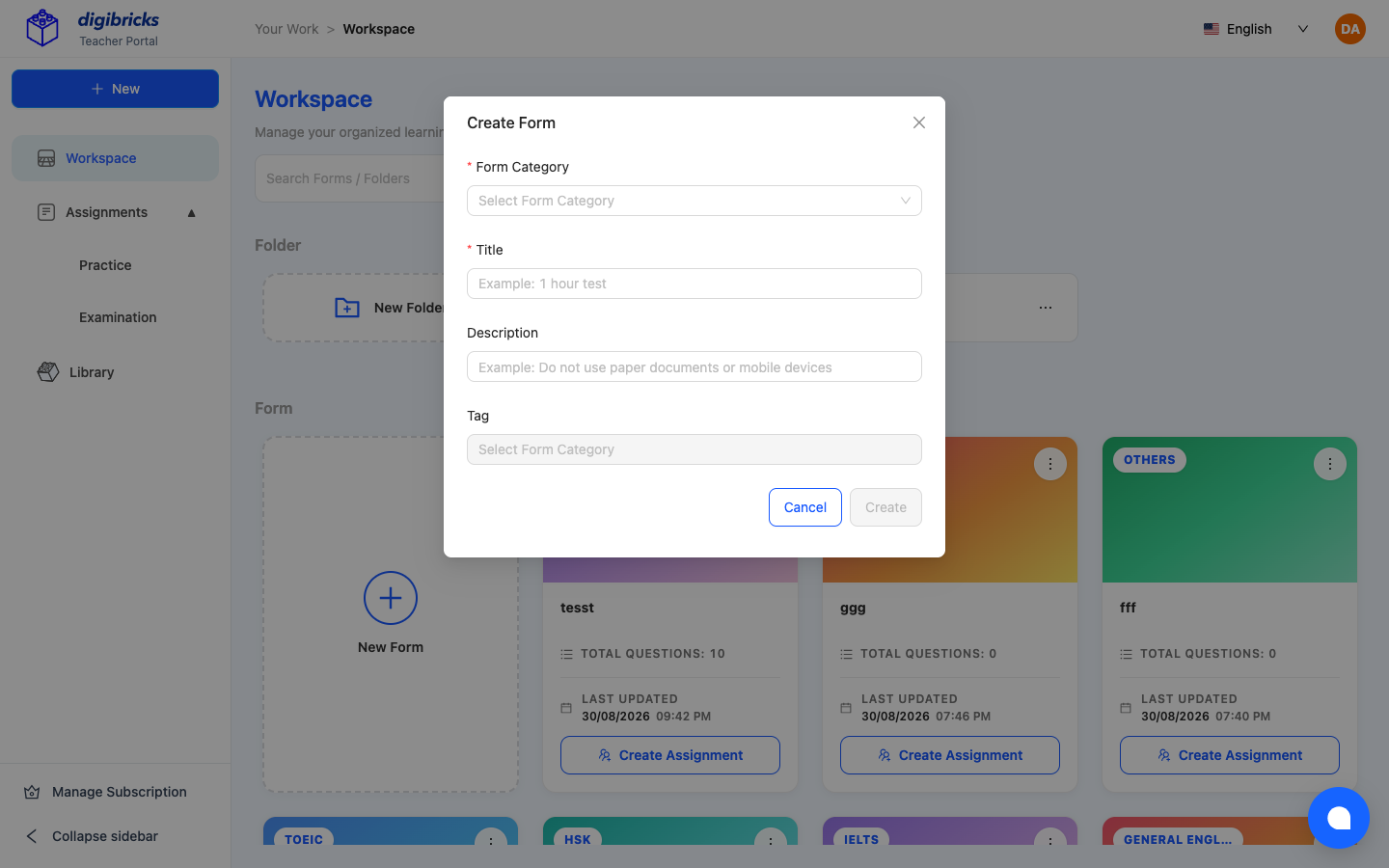
- Click ”+ New Form” on Workspace (or the
+ Newbutton on the top-left sidebar). - Select your Form Category (
TOEIC,IELTS,HSK,VSTEP,GOETHE,GENERAL ENGLISH,OTHERS). - Enter Title, Description, and subject Tags.
- Click “Create” to open the rich Question Editor:
- Edit Questions (Pencil icon): Adjust typography and paragraph formats.
- Add Images (File icon): Embed visual diagrams or question figures.
- Add Audio (Microphone icon): Upload listening tracks for audio sections.
- Preview & Export Offline: Test student UX or click “Export Offline Test” to generate printable classroom test sheets.
- Publish & Create Assignment: Finalize to move into assignment distribution.
- Click ”+ New Form” on Workspace (or the
Assignment Workflow & Full Configuration Matrix
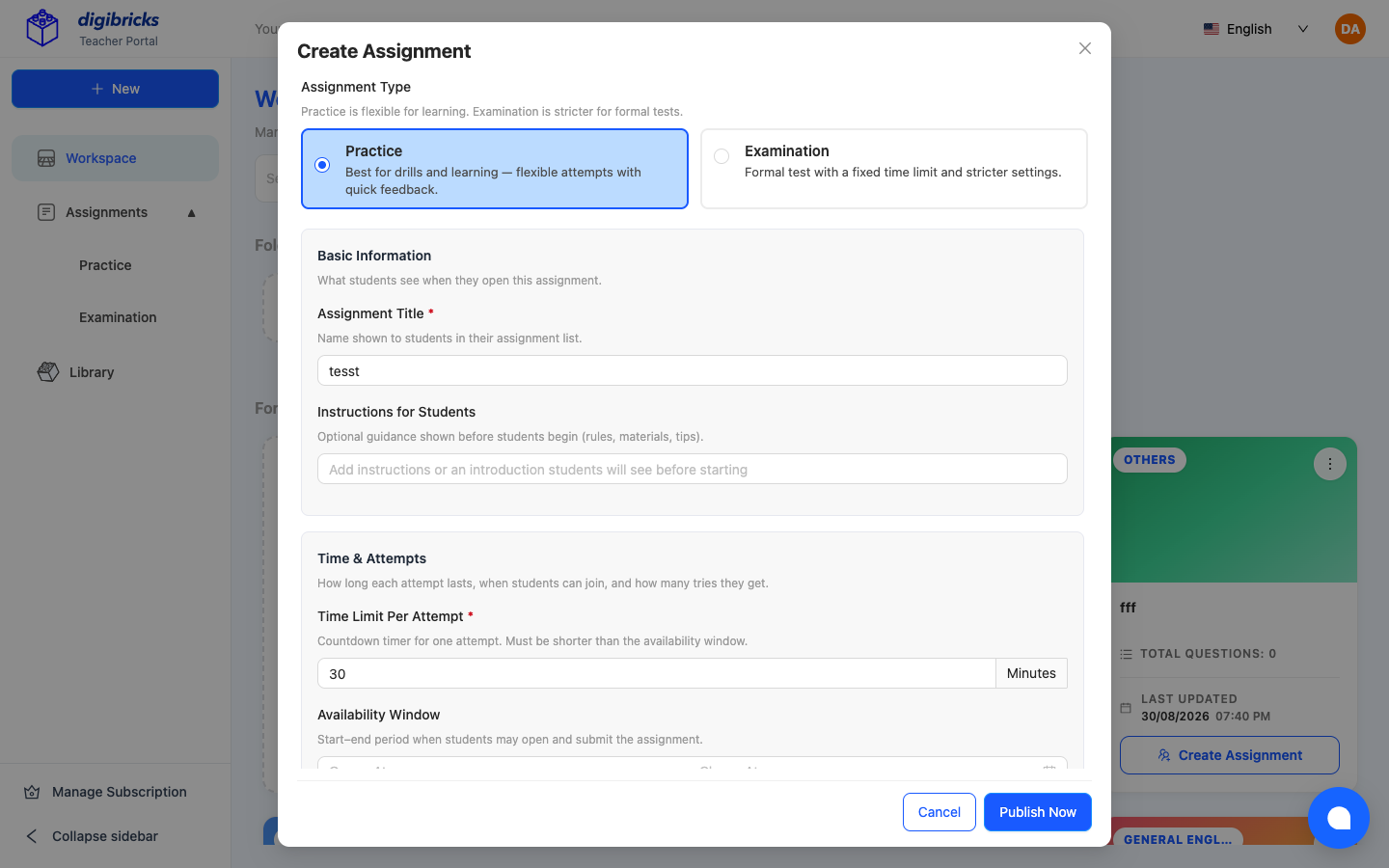
Clicking “Create Assignment” opens the Create Assignment Modal featuring 6 specialized configuration sections:
⚙️ 6 CORE ASSIGNMENT SETTING SECTIONS:
1️⃣ Assignment Type:
- 🎯 Practice: Best for homework drills and self-study with flexible attempts and immediate feedback.
- 🏆 Examination: Formal assessment with strict countdown timers and anti-cheating controls.
2️⃣ Basic Information:
- Assignment Title (\*): Name displayed to students in their assignment roster (e.g. Class Saturday, Mid-term Exam).
- Instructions for Students: Optional pre-test guidance (rules, allowed references, examination tips).
3️⃣ Time & Attempts:
- Time Limit Per Attempt (\*): Countdown timer for each single attempt (in minutes, e.g. 30 Minutes, 45 Minutes).
- Availability Window: Effective window (Start date - End date) when students may start and submit tests.
- Maximum Attempts (\*): Maximum attempts allowed per student (Unlimited for Practice; locked to 1 Attempt for Examination).
4️⃣ Access Control:
- Access Password: Optional security passcode. Leave blank for open access; if set (e.g.
DIGI2026), students must enter the code before questions unlock.
5️⃣ Question Order (Anti-Cheating):
- Shuffle Question Order: Displays questions in a randomized sequence for every student.
- Shuffle Answer Choices: Shuffles multiple-choice options (A, B, C, D) independently per learner.
6️⃣ Scoring & Results:
- Show Correct Answers & Explanations:
- On (Practice): Students review keys and AI explanations immediately upon submission.
- Off (Examination): Keeps keys hidden during test windows to safeguard integrity.
- Passing Score (\*): Define passing thresholds by Score (Points, e.g. 5/10 pts) or Percentage (% e.g. 50%).
📊 PRACTICE VS EXAMINATION COMPARISON MATRIX
| Configuration Criteria | 🎯 Practice Mode | 🏆 Examination Mode |
|---|---|---|
| Primary Use Case | Drills, homework, self-study. | Formal assessments, mock exams, finals. |
| Maximum Attempts | Unlimited (Repeatable tries). | 1 Attempt (Single chance only). |
| Time Limit | Flexible, optional. | Strict Countdown Timer (Auto-submit on expiry). |
| Availability Window | Long-term open window (No set date). | Fixed start and closing timestamps. |
| Show Answers & Explanations | On (Instant post-submit review). | Off (Hidden until teacher releases). |
| Anti-Cheating (Shuffle) | Optional randomization. | Recommended ON for questions & choices. |
| Grading Workflow | 100% Instant auto-grading. | Features Grading Now for manual/essay scoring. |
Submission Analytics, Error Matrix & In-Class Grading
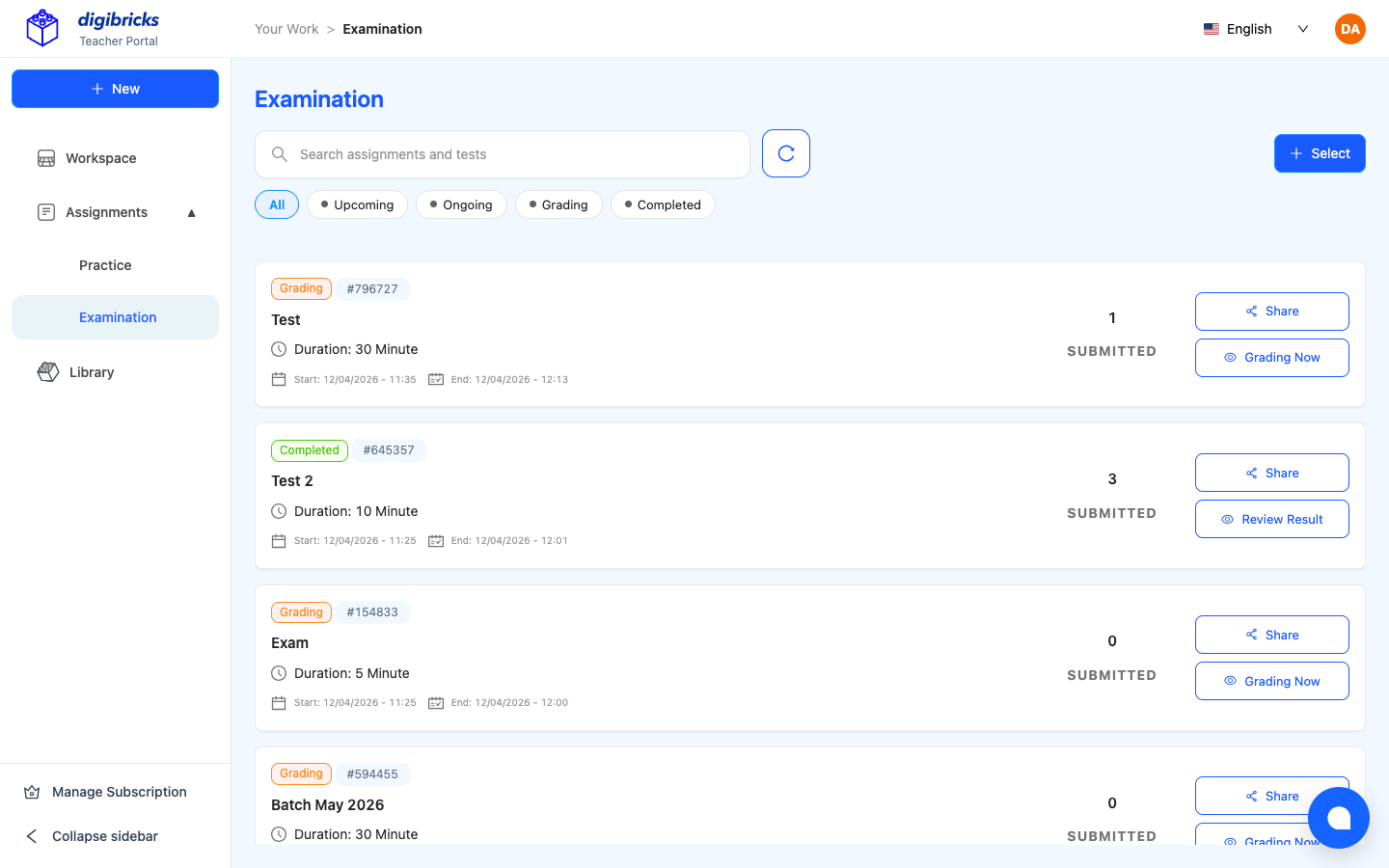
After students complete tests on quiz.digibricks.net, educators open the Assignments roster to track results and execute a modern 3-step in-class review process (modeled after real-world best practices from WOODPECKER Language Center):
🛠️ 3-Step Error Matrix Review & In-Class Grading:
Step 1: Candidates Overview
- The Assignment dashboard provides real-time metrics:
- Total Participants, Submissions, and Pass/Fail Rates.
- Candidate list sorted chronologically by submission time.
Step 2: Itemized Error Matrix Inspection
Click directly on any student’s name to launch the Intuitive 3-Column Grading Interface (ideal for classroom projectors or Zoom screen sharing):
- Green Badge
✓ STUDENT ANSWER: Indicates questions answered correctly. - Red Badge
✕ STUDENT ANSWER: Highlights options selected incorrectly by the learner. - Green Notice
✓ CORRECT · MISSED: Clearly reveals the exact correct key that was missed. SkippedStatus: Flags questions left blank.- Instant Student Switcher: The right-hand column lets teachers switch between students in 1 click without page reloads!
Step 3: Instructor Feedback & 1-Click CSV Export
- Instructor Feedback Box: Type targeted grammatical notes, advice, or encouragement directly onto the submission.
- Download CSV Button: Export the full gradebook (Name, Email, Time Spent, Score %, and Passed/Failed status) for parent reporting and school archives.
Digibrick's Template Library
Digibrick’s Library (/bricks?menu=library) provides a comprehensive repository of standardized learning templates contributed by master educators:
🔍 1. Search & Filter Templates:
- Categorized by certification:
TOEIC,IELTS,HSK,VSTEP,GOETHE,CAMBRIDGE,MATHEMATICS. - Filter by proficiency tiers (A1–C2, 500–990 TOEIC, Band 5.0–8.5 IELTS).
⚡ 2. 1-Click Clone to Personal Workspace:
- Click any template to preview its full question layout.
- Click “Clone / Use Template” to replicate questions, audio listening assets, and answer keys into your private Workspace in 1 second.
- Freely customize and adjust questions before assigning to your students.
Account Settings, Password & AI Credits Quota
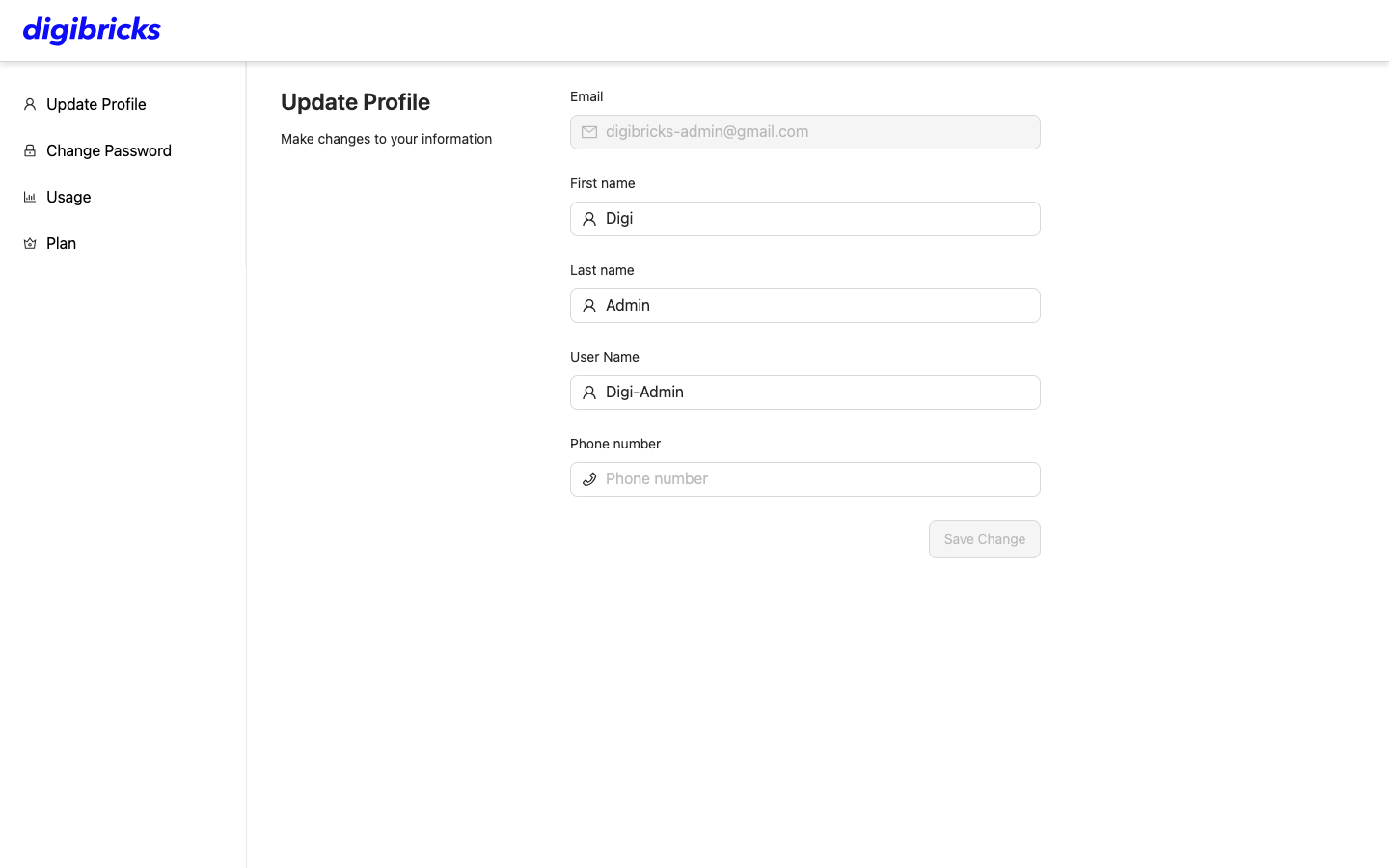
Manage your educator profile and monitor resource consumption at:
👉 https://identity.digibricks.net/account-setting/update-profile?clientId=teacher
👤 1. Update Profile:
Modify your public educator credentials:
- Email: Account identifier (digibricks-admin@gmail.com).
- First & Last Name: Teacher display names.
- Username & Phone Number: Unique handle and verified contact number.
- Click “Save Change” to commit updates.
🔒 2. Change Password:
Enterprise-grade password requirements:
- Minimum 8 characters.
- Must contain at least 1 number (0–9), 1 uppercase letter (A–Z), and 1 special character (
@$!%#+=()^?&). - Enter Old Password → New Password → Confirm New Password.
- Click “Save Change” to update your password.
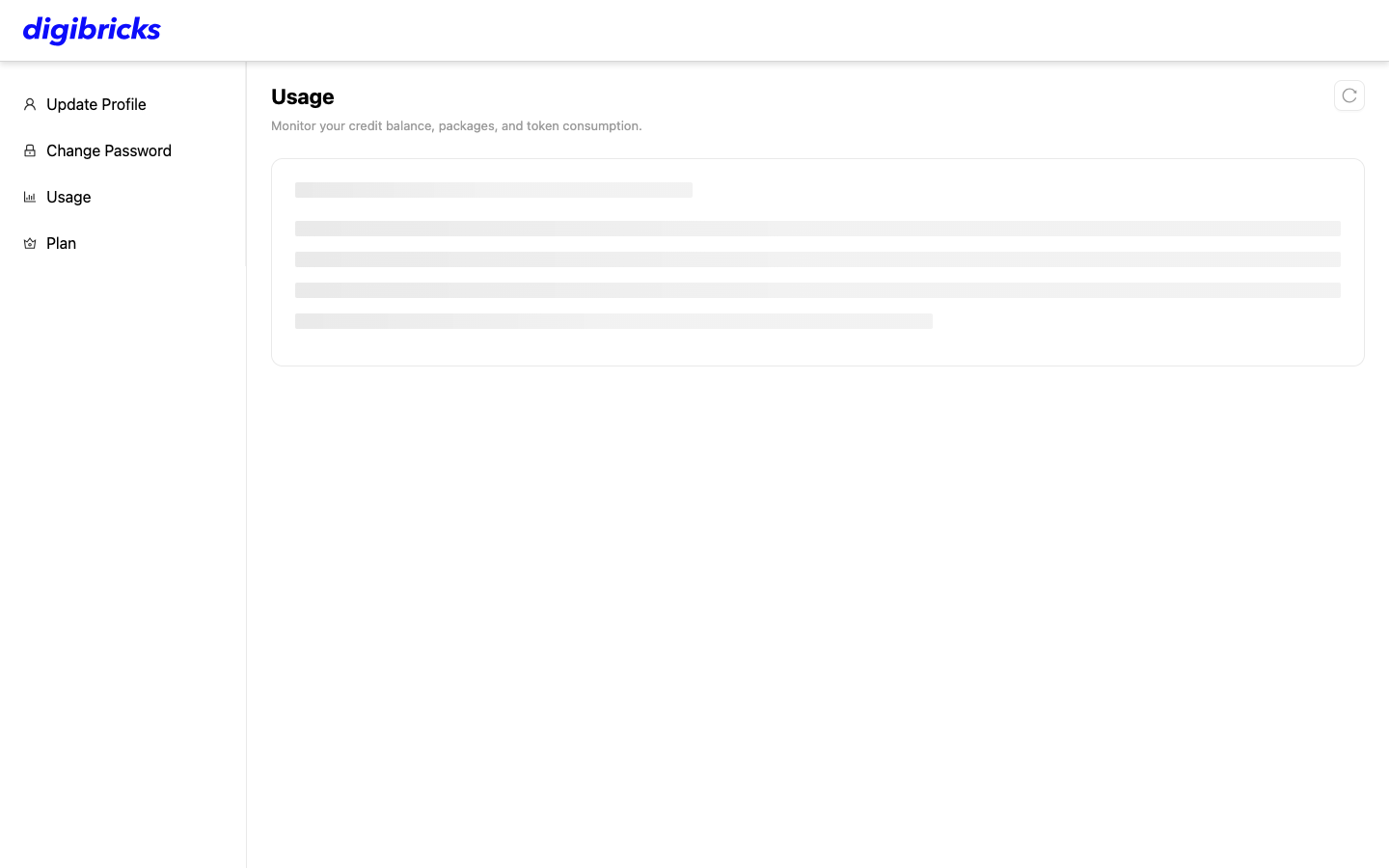
📊 3. Usage & AI Credits Quota:
Monitor available AI credits and weekly refill quotas:
- Credits Available: Real-time AI balance (e.g.
200,000 / 200,000- 100% remaining). - Current Package: Active tier (Prod / Pro).
- Expired At: Plan expiration timestamp (Jan 22, 2027).
- Next Refresh: Weekly credit auto-renewal timestamp (Sep 25, 2026, 11:52 AM).
Plan Management & Pro Subscription Upgrade (Plans)
Manage and upgrade your educator subscription tier at:
👉 https://identity.digibricks.net/account-setting/plan?clientId=teacher
💳 Subscription Tier Comparison:
| Feature & Benefit | 🎁 FREE Tier | 🚀 PRO Tier ⭐ |
|---|---|---|
| Pricing | 0 ₫ (Lifetime Free) | 299,000 ₫ / month |
| Special Promotion | Standard onboarding | 50% Discount on prepaid 6-month plans (Promo Code: 2026PROMO) |
| Weekly AI Credits | 30,000 credits / week (Refreshed weekly, ~3 AI tests/week) | 200,000 credits / week (Refreshed weekly for continuous test generation) |
| AI Test Creation | Within Free tier limits | Unlimited advanced AI test generation |
| Library & Manual Builder | Full access | Full access to 100% of platform tools |
| Support & Community | Standard email support | VIP Access: Private Facebook Group & Zalo VIP Community with 1-on-1 assistance |
| Ideal For | Educators exploring the workflow | Exam prep teachers, language centers, and academic faculties |
🚀 How to Upgrade to PRO Tier:
- Navigate to Plan in Account Settings (or click “Manage Subscription” at the bottom of your Workspace sidebar).
- Select your billing cycle: 1 month or 6 months (eligible for the 50% off code
2026PROMO). - Complete payment to instantly unlock your 200,000 Credits/week quota!